
Import databases · Agribalyse
Import Agribalyse from SimaPro CSV
Start from an Agribalyse 3.2 SimaPro CSV export, import it into VoLCA, then inspect the resulting activities, exchanges, inventories, and impact views.
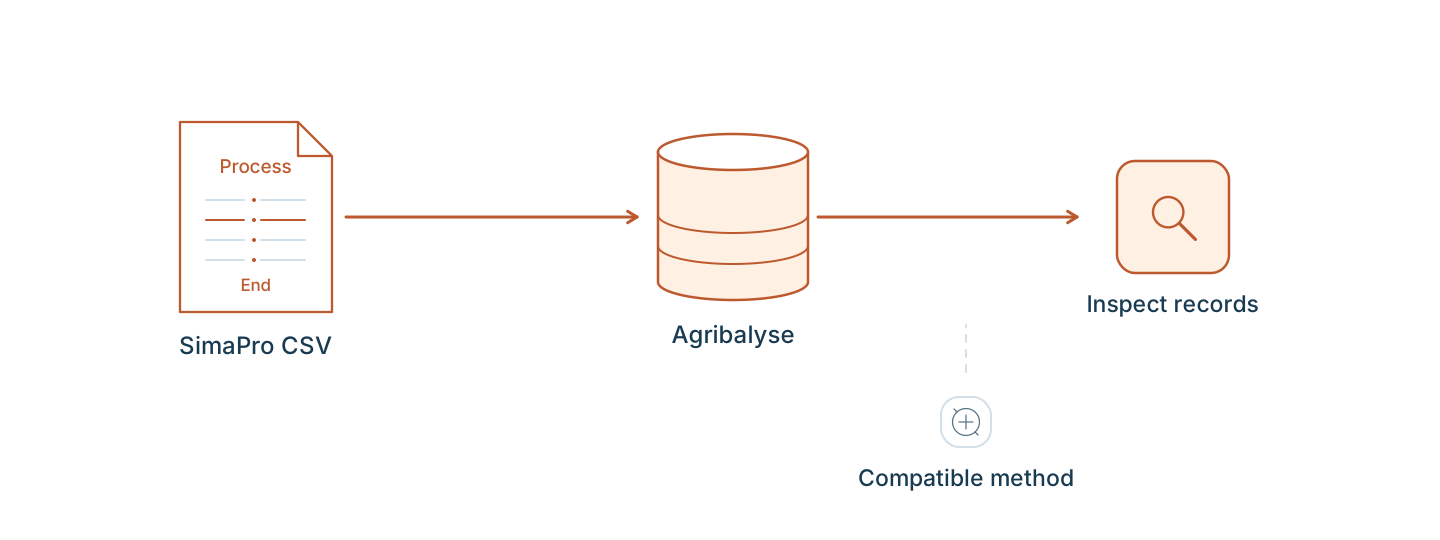
From file upload to a usable database
A database import is only useful if the result can be opened, searched, and checked. VoLCA turns a SimaPro CSV export into an inspectable workspace where activities, direct exchanges, inventories, and impact views remain close at hand.
Use this workflow when you have an Agribalyse export and want to move beyond the archive file: import the database, open a concrete activity, and follow the data from source records to calculated views.
Where the source file comes from
Agribalyse is the French food LCA database published by ADEME. This guide uses its complete 3.2 SimaPro CSV inventory export, not the simplified food-results spreadsheet. The complete inventory includes ecoinvent background data: consult the official access and licensing conditions before obtaining, importing, or sharing the archive.
For your own import, use a writable VoLCA engine that you control or have permission to upload to. The shared demonstration engine is read-only.
What this workflow shows
- VoLCA exposes a database upload path for SimaPro CSV exports.
- Agribalyse 3.2 can be represented as a VoLCA database for browsing and inspection.
- The useful result continues past upload into concrete activity and exchange views.
Good fit for
- LCA practitioners with SimaPro-exported databases.
- Teams checking whether VoLCA can make a dataset easier to inspect.
- Workflows that combine Agribalyse metadata, transformed ingredients, and Python access.
Boundary
Database import and impact-method compatibility are separate questions. This page focuses on getting the Agribalyse database into an inspectable VoLCA workflow. Impact calculations require a compatible method setup, such as the adapted EF 3.1 context used in other Agribalyse examples.
Walkthrough
1. Start with the SimaPro CSV export
Prepare the Agribalyse 3.2 upload
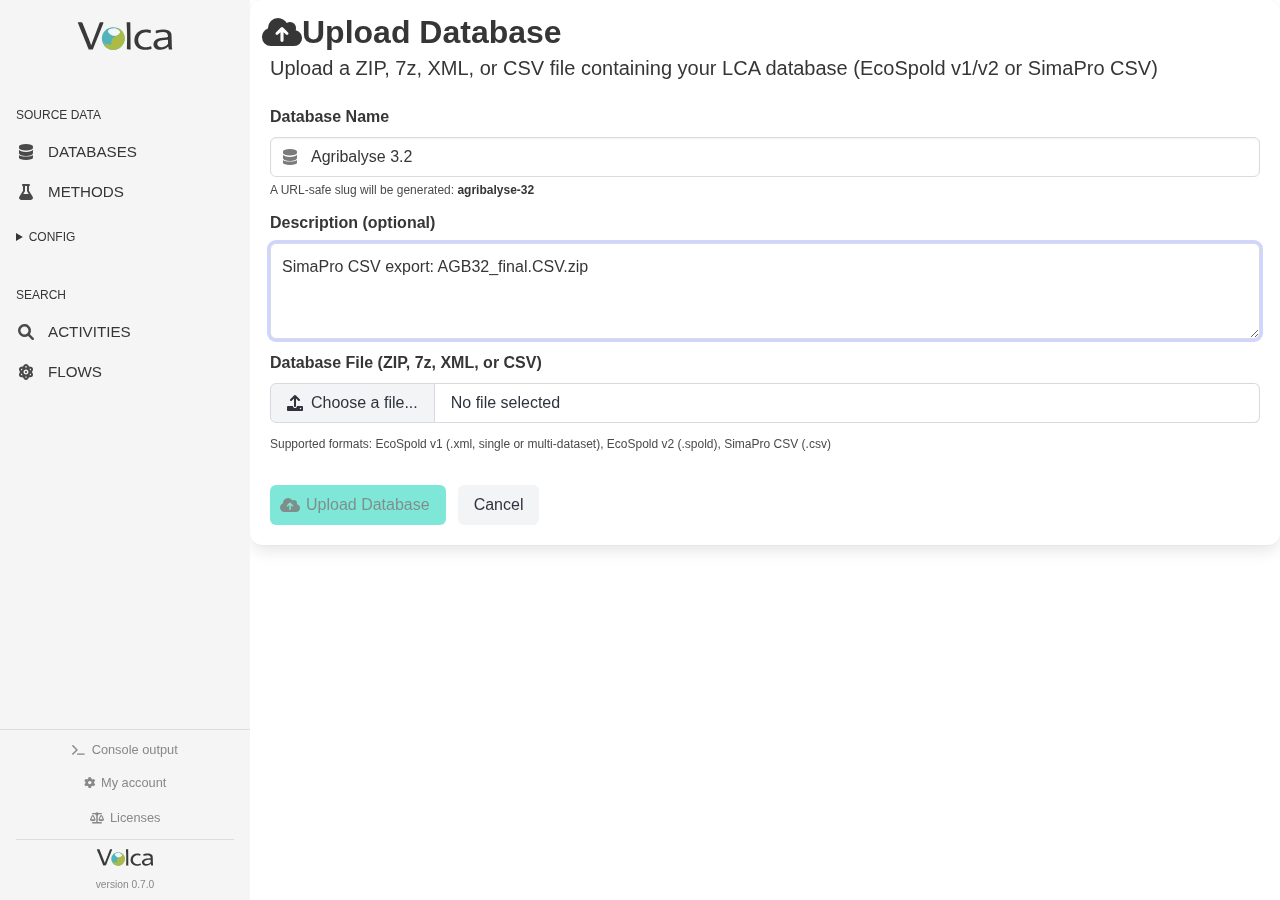
VoLCA's database upload form accepts EcoSpold v1/v2 and SimaPro CSV files. In this walkthrough, the source artifact is an Agribalyse 3.2 SimaPro CSV export packaged as AGB32_final.CSV.zip.
Name the database, describe the source, and upload the SimaPro CSV archive. Once loaded, the same database can be searched and inspected through the normal VoLCA views.
2. Open the imported database
Open an activity and inspect direct upstream exchanges
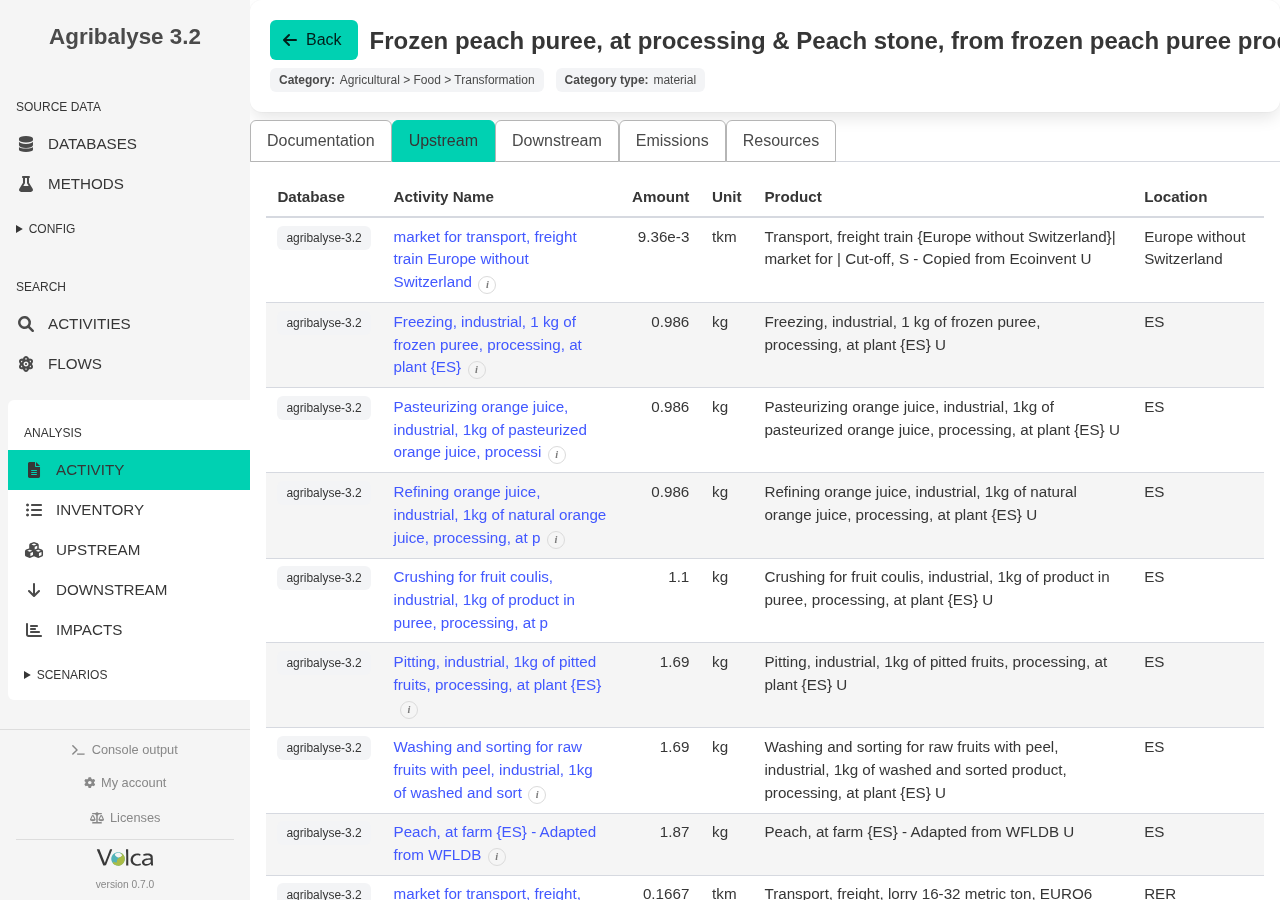
The useful test is whether the resulting database supports everyday inspection: search an activity, open it, and inspect direct upstream exchanges from the database record.
This Agribalyse 3.2 capture shows the kind of inspection state the import workflow should lead to.
3. Continue from source records to computed views
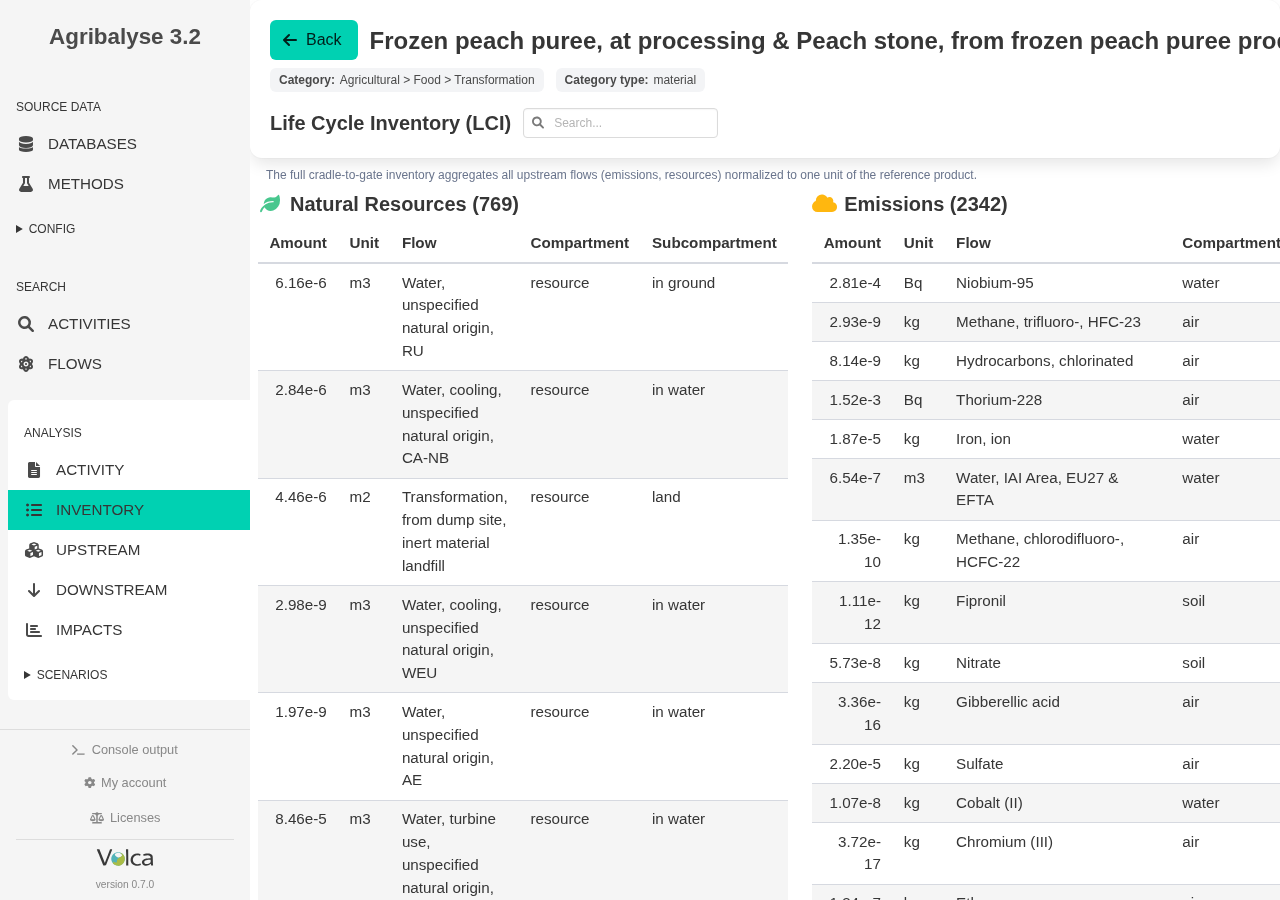
Inspect the life-cycle inventory after loading the database
Once the database is loaded, VoLCA can move from the source activity record to broader analysis views such as the full inventory for a selected reference flow.
This is the difference between storing an uploaded file and using the imported database as an inspectable working environment.
Runnable examples
Python scripts from the public examples project that exercise this workflow.
Frequently asked questions
What file do I need to import Agribalyse?
An Agribalyse 3.2 SimaPro CSV export, such as AGB32_final.CSV.zip. VoLCA also accepts the export packaged as ZIP, 7z, tar.gz, or tar.xz.
Does importing Agribalyse include an LCIA method?
No. Agribalyse import loads inventory data only, activities, exchanges, and matrices. Impact calculation, such as the adapted EF 3.1 context used in other Agribalyse examples, needs a separately configured and verified method.
Is Agribalyse licensed data?
Access conditions depend on the data product. The complete inventory includes ecoinvent background data and is subject to licensing conditions. Check the current ADEME access rules and your rights before importing or sharing it.
How do I verify the Agribalyse import succeeded?
Search for a known activity, open it, and check its direct upstream exchanges and full inventory, as shown in the walkthrough above.